

Key takeaways:
- The mainland App Store doesn't list Binance, so on iOS the hurdle is the Apple ID, not the app: you need a foreign-region Apple ID — register one yourself for free, no card needed, and don't buy a shared account.
- Switching only touches "Media & Purchases", not iCloud: WeChat, photos, contacts and backups are all unaffected, and you can switch back any time.
- iPhone is the hardest platform to get a wrong app, but clone apps sneak into the store with keyword-stuffed names — look for the developer Binance + the black-and-gold diamond icon.
- Updates follow your Apple ID's region: an installed Binance keeps working after you switch, but you must switch back to the foreign region to update.
- Downloading and registering are free; after installing, enable 2FA, then don't register directly in the app — use invite code BINANBT for a 20% fee rebate.
Table of contents
- On iOS, the hard part isn't the app — it's the Apple ID
- Step 1: register a foreign Apple ID (free, no card)
- How to switch Apple IDs safely: only 'Media & Purchases'
- The App Store download and spotting clones
- Fixing 'can't find' and download failures
- Update, security setup and 'don't register directly'
- 💰 Binance rebate: invite code BINANBT
- FAQ
- Further reading
On iOS, the hard part isn't the app — it's the Apple ID
Downloading Binance on iPhone is both the safest and the most "fiddly": safe because the App Store vets authenticity for you, fiddly because the mainland store doesn't list Binance — you must first sort out a foreign Apple ID. On Android the trap is "where to download from" (you bypass the store and verify authenticity yourself); on iOS the trap is "which ID to download with" — the app itself won't be wrong, but if you can't get past the ID gate, nothing else matters.
Split the difficulty of iOS download into three parts:
- Can't find it: the mainland App Store doesn't carry Binance, and search results may show clone apps with "Binance" in their names — but not the real one.
- Afraid to switch: many people fear that switching Apple IDs will lose WeChat or photos, so they buy a "shared Apple ID" — and that's the real source of risk.
- Clones in the store: iOS has no "unknown sources" problem, but fake apps crowd the top of results with keyword-stuffed names.
⚠️ Why this matters most: once crypto assets land in a fake app, they're essentially gone. iOS's review filters out most fakes, but the two "shortcuts" — buying a shared ID and sideloading via enterprise certificates — bypass exactly the protection Apple gives you. This article explains why to avoid both.
Step 1: register a foreign Apple ID (free, no card)
A foreign Apple ID is easy to register yourself for free, with no bank card or payment method required — under ten minutes total. The "shared US Apple ID" sold online has no advantage except being cheap, and all the risk is yours.
Pick your region first: US, Hong Kong and Singapore all work, with the US store the fullest and most common. This guide uses the US as an example.
Registration steps:
- Open Apple's "Create Your Apple ID" page, or on iPhone go to "Settings → Sign in to your iPhone → Don't have an Apple ID → Create New Apple ID".
- Set the country/region to United States.
- Fill in your info: use an adult birth date; the name can be anything but don't use your real full name; the address can be an ordinary address in a tax-free state (e.g. Oregon); you can use your +86 mainland number to receive the code.
- The key step: set the payment method to "None" — no card, completely free. If "None" doesn't appear, the address usually isn't a tax-free state or a field is incomplete; check and retry.
- Verify your email and you're done. Use this ID only for downloading Binance, separate from your regular mainland ID.
⚠️ Never buy a shared Apple ID. The seller can change the password and lock you out at any time; the account may be tied to someone else's payment method; and you have zero control over its security history. Registering your own takes ten minutes and is free forever — this is the first rule of downloading Binance on iOS.
How to switch Apple IDs safely: only 'Media & Purchases'
The correct way to switch is to change only "Media & Purchases", not iCloud — so WeChat, photos, contacts and backups are all untouched. This is the most important step many guides skip: the Apple ID on an iPhone has two layers — the iCloud layer holds data, and the Media layer handles the App Store. You only need to change the latter.
Switch path:
- Open "Settings" and tap your name at the top.
- Scroll to "Media & Purchases" and tap it.
- Tap "Sign Out", then sign in with the foreign ID you just registered.
- Open the App Store; the region at the top of the account page (tap your avatar) should now be the US store.
Note: don't sign out of iCloud, and never sign in to someone else's ID in iCloud. The iCloud layer holds photos, contacts and Find My iPhone — keep your own account there.
The effects of switching, in one table:
| Item | After switching only "Media & Purchases" |
|---|---|
| Already-installed apps (WeChat, QQ, etc.) | Unaffected, keep working |
| Photos, contacts | Unaffected (still in iCloud, untouched) |
| iCloud backup, Find My iPhone | Unaffected |
| App Store region | Changes to a foreign region, Binance searchable |
| Already-installed Binance | Keeps working, but updates need the foreign region |
💡 Many people get stuck here on the psychology: "Will switching lose my data?" — switching only the Media layer loses nothing. To download mainland apps again, switch back to the China region the same way; going back and forth is fine. The thing to fear isn't switching — it's using someone else's ID.
The App Store download and spotting clones
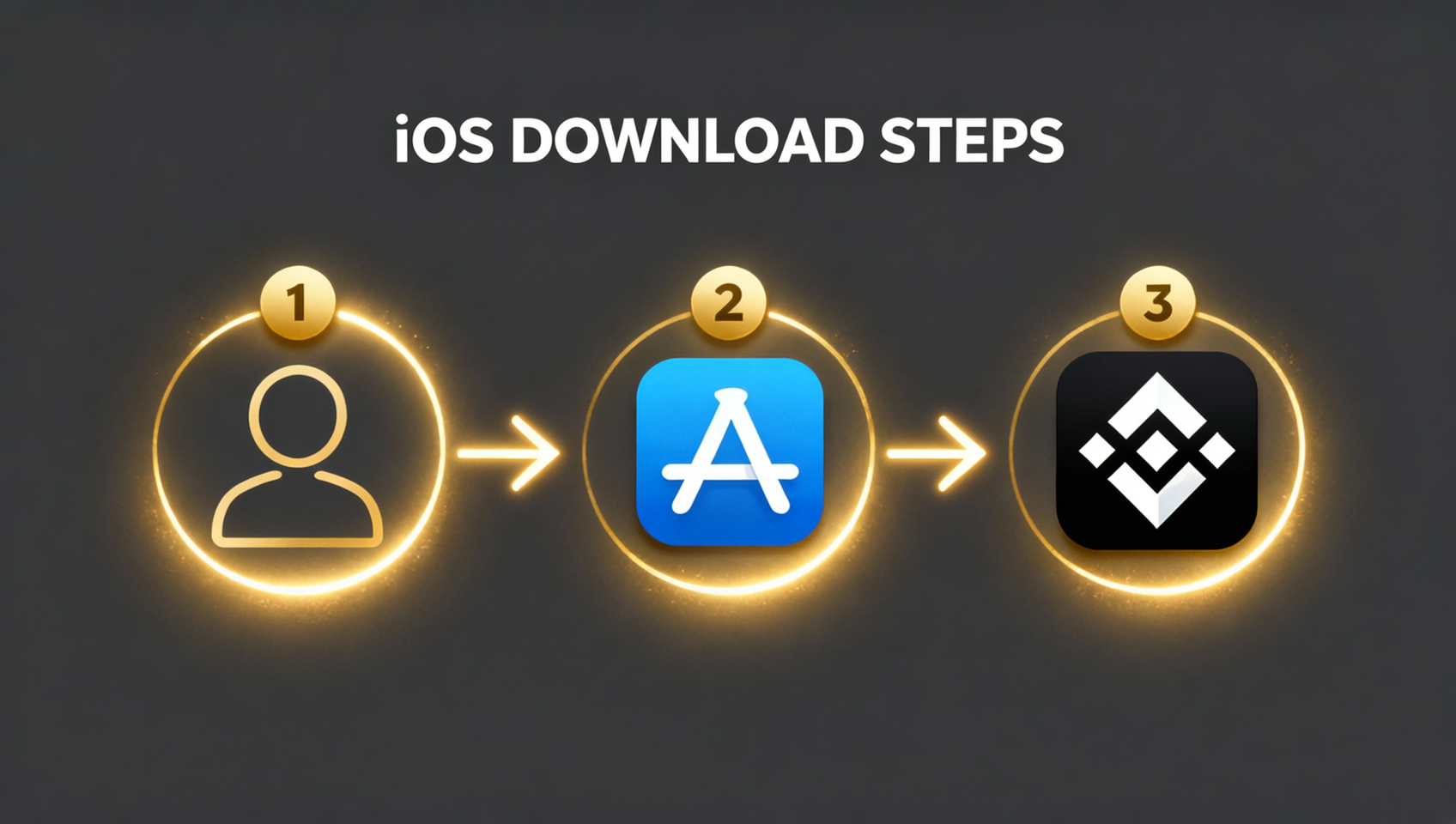
Once you've switched regions, the download itself is simple: search, confirm, install.
- Open the App Store and confirm the account at the top-right is the foreign ID.
- Search "Binance".
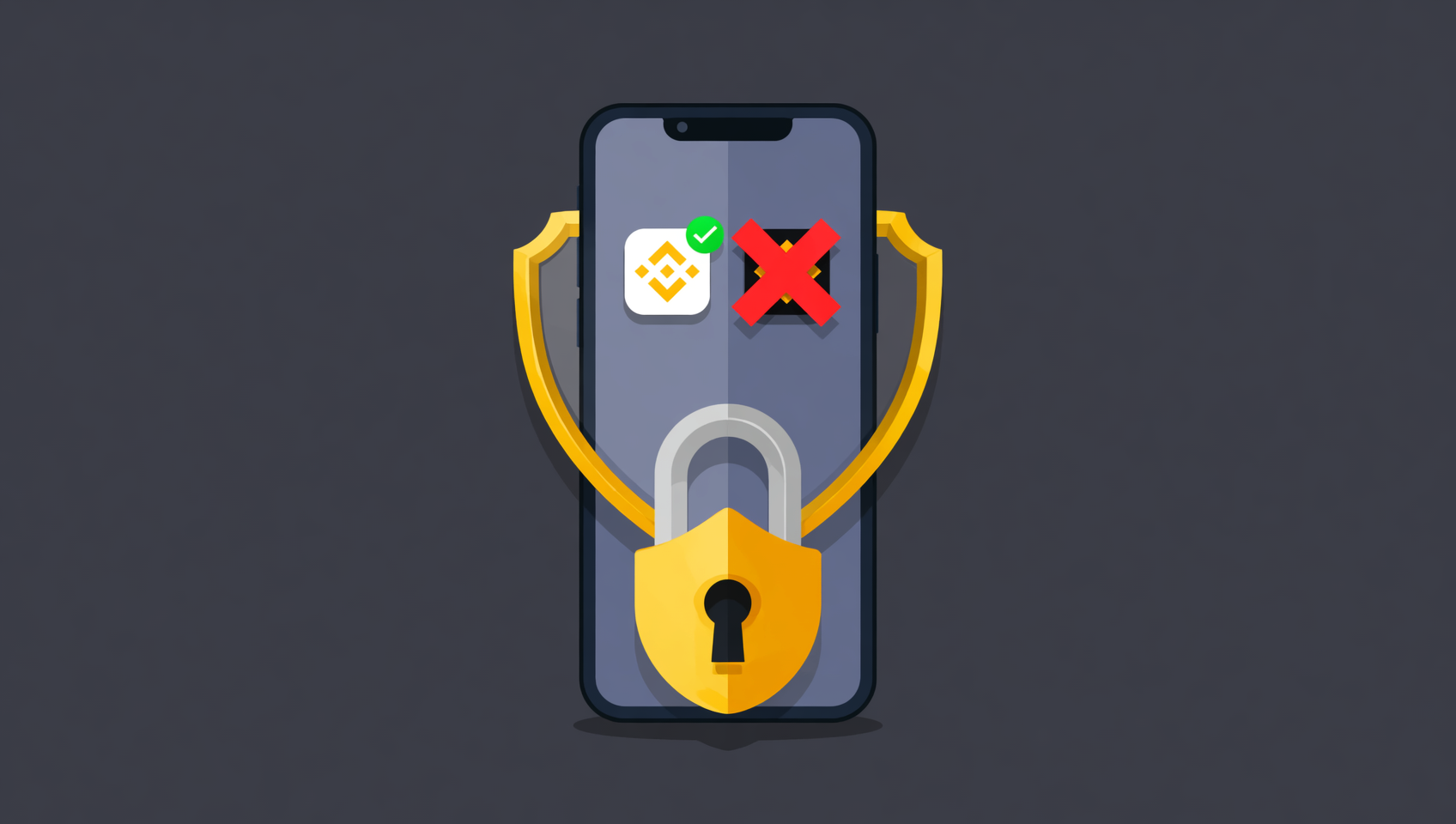
- Look for the developer Binance and the black-and-gold diamond icon, rated 4.7+ with hundreds of millions of downloads1.
- Tap "Get" to install, then open the app.
iOS has no official install channel outside the App Store, so spotting clones is simpler — just watch who's "grabbing the name" in search results. Clone apps stuff their names with keywords like "Binance Exchange - Futures Wallet Assistant" or "Binance — Quant Trading", while the official name is a single word: Binance.
| Check | Genuine | Clone |
|---|---|---|
| Developer | Binance | Unknown company or individual |
| Name | A single word: Binance | Keyword-stuffed ("exchange/futures/wallet/quant") |
| Icon | Black-and-gold diamond | Flashy colors or a text-bearing knock-off |
| Rating & scale | 4.7+, hundreds of millions of downloads | Few ratings, templated reviews |
⚠️ Two "shortcuts" to avoid: ① TestFlight invites — Binance never ships via TestFlight; treat any such invite as phishing; ② "No Apple ID install" / "enterprise certificate install" — that's bypassing App Store review, essentially giving your phone an Android-style "unknown sources". iOS's security is exactly what those operations throw away.
If you don't have a Binance account yet, you can register on Binance first and handle the download later — registration and download run in parallel and don't block each other.
Fixing 'can't find' and download failures
When downloading Binance on iOS fails, nine times out of ten the region isn't switched. Go down the table for the rest.
| Symptom | Cause | Fix |
|---|---|---|
| Can't find Binance | Media & Purchases didn't switch; store is still China | Check the account/region at the top of the App Store account page, and re-switch |
| "This app is not available in your country or region" | Same — still in the China region | Same as above |
| Download spins / fails | Network fluctuation | Toggle Wi-Fi/mobile data and retry, or try later |
| "Untrusted enterprise developer" on open | You didn't install the App Store version | Delete it and get the real one from the App Store |
| No update button / can't update | Updates follow the region; you're signed into the China region | Switch back to the foreign region before updating |
One easy-to-miss detail: after switching, the App Store may still show cached old-region content — quit and reopen the App Store to refresh. An installed Binance won't disappear or break when you switch regions; only version updates follow the foreign region.
Update, security setup and 'don't register directly'
Installing the app is just the start — the next two things decide your asset security.
- Enable two-factor authentication (2FA): go to "Profile → Security Center" and bind Google Authenticator or phone verification, so login and withdrawals both need a second confirmation. If possible, also set an anti-phishing code to recognize fake official emails.
- Don't register directly in the app: registering right after downloading earns no new-user reward — only the registration link or invite code BINANBT gets you the 20% fee rebate. Use the code before registering; this step is as important as the download.
💰 Binance rebate: invite code BINANBT
After downloading and installing, enter invite code BINANBT at registration to get a 20% fee rebate. Key reminder: don't register directly in the app, which earns no new-user reward; only the registration link or invite code BINANBT gets it for you.
- Rebate amount: 20% cashback on every trading fee.
- How to claim it: enter BINANBT in the "invite code" field at signup; if you miss it, you can bind it within 30 days of registering.
- Stack it: turn on "pay fees with BNB" to save an extra ~25%.
👉 Register on Binance now and claim your 20% fee rebate
FAQ
Does the iOS version require a foreign Apple ID?
Yes. Because of regional restrictions, the mainland App Store doesn't list Binance, so you need a foreign-region Apple ID to download the official Binance. Register one yourself for free; don't buy a shared account.
Will switching Apple IDs affect WeChat or photos?
No. As long as you switch only "Media & Purchases" (Settings → your name → Media & Purchases), the iCloud layer is untouched and WeChat, photos, contacts and backups stay as they were. Don't sign out of or into iCloud with someone else's account.
Can I buy a shared Apple ID online?
Strongly not recommended. The seller can change the password at any time, the account may be tied to someone else's payment method, and its security history is uncontrollable — you'd be handing your download gate to a stranger. Registering your own foreign ID is free and takes ten minutes.
The App Store can't find Binance — what do I do?
First confirm "Media & Purchases" has switched: check the account at the top of the App Store account page, switch to the foreign ID, then search. If it says "This app is not available in your country or region", you're still in the China region — switch again.
Is the "untrusted enterprise developer" prompt normal when opening Binance?
No. The App Store version never shows this prompt — it means you installed an enterprise-certificate (non-store) build from an uncontrolled source. Delete it and download the real one from the App Store.
Do Binance updates always require a foreign ID?
Updates follow the "Media & Purchases" region. An installed Binance keeps working after you switch back to the China region, but new versions require switching back to the foreign region to update. You can switch only when updating.
Can I register right after downloading the Binance app?
You can register, but registering directly earns no new-user reward. Only the registration link or invite code BINANBT gets you the 20% fee rebate, so use the code before registering.
Further reading
- Binance download guide 2026: Android / iOS / HarmonyOS / desktop
- Binance Android APK download guide: official install, fix errors & verify the app
- Binance registration guide 2026: signup, KYC and buying
- Binance official website entry guide: official URLs and anti-phishing
Disclaimer: this content is educational only and not investment advice. Cryptocurrency investing carries risk; decide according to your own situation. Only obtain the Binance app through official channels such as the App Store, and run a security check after installing. Ratings and download counts are as shown in the App Store1.