
How to Download & Install Binance App on Android (2026): Official APK, Unknown Sources Setup & Install-Failure Troubleshooting
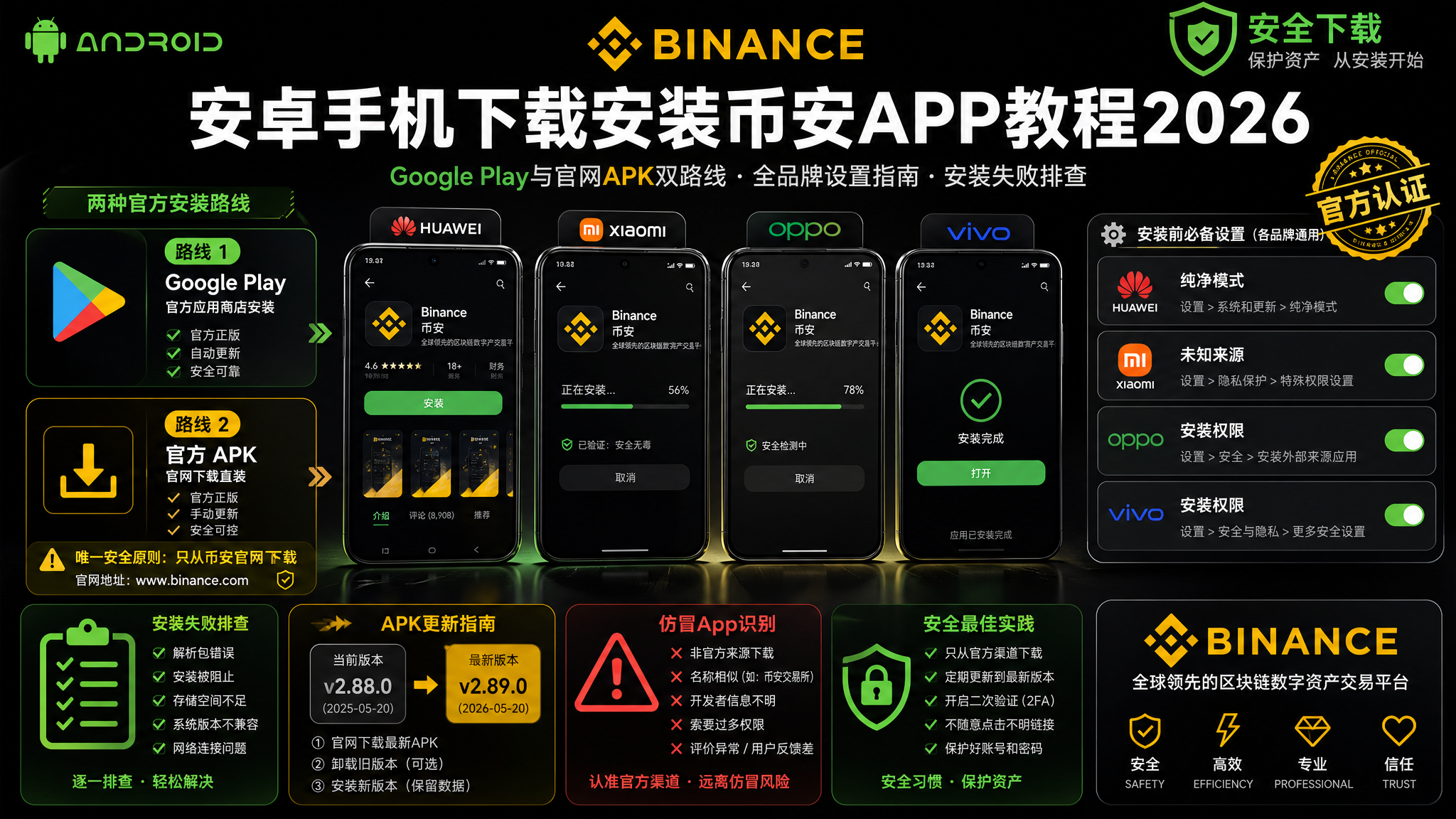
The complete 2026 guide to installing the Binance app on Android: Google Play vs official APK — which route fits your phone, unknown-source and Pure Mode settings for Huawei, Xiaomi, OPPO and vivo, a symptom-by-symptom troubleshooting table, how to update the APK manually, and a checklist for spotting fake Binance apps. One rule to remember: download only from binance.com.
TL;DR: the one-sentence summary
Bottom line: there are only two legitimate routes to install Binance on Android — Google Play if your phone has Google services, or the official APK from binance.com if it doesn't (Huawei, and most phones in China). And there is only one security rule that matters: get the installer from binance.com or Google Play, nothing else. Download sites ranking high in search results and files shared in group chats are where fake Binance apps come from. When installation fails, it's one of three things about 90% of the time: the unknown-source permission was granted to the wrong app, Huawei/Honor's Pure Mode is blocking the install, or the package didn't finish downloading. This article gives per-brand setup paths (compiled from Binance's official install guide, checked 2026-09-10) plus a symptom → cause → fix troubleshooting table1.
Step 0: pick your route in 30 seconds
Before hunting for a download link, find your phone in this table — starting on the wrong route is the most common way to waste an afternoon:
| Your situation | Take this route |
|---|---|
| Samsung, Pixel, or any phone with Google services | Route 1: Google Play |
| Chinese-brand phone (Xiaomi/OPPO/vivo, etc.) without Google services | Route 2: Official APK |
| Huawei/Honor (EMUI or HarmonyOS 4.x and below) | Route 2: Official APK + disable Pure Mode (see dedicated section) |
| HarmonyOS NEXT (pure HarmonyOS) | Special case — watch our video tutorial; the method below doesn't apply directly |
The quickest way to check for Google services: look for the "Play Store" app in your app list. It's there — Route 1. It's not — Route 2.
Route comparison: what each one trades away
| Google Play | Official APK | |
|---|---|---|
| Requirement | Google services framework | None |
| Updates | Automatic | Manual (in-app prompt or re-download) |
| Download speed | Depends on Google connectivity | Direct from official site, usually faster |
| Safety | Store review + official signature | Official signature, but source verification is on you |
| Best for | Users with Google services | Huawei users, users who want the latest build |
The trade-off is blunt: Google Play trades availability (many phones simply don't have it) for effortless automatic updates; the APK trades automatic updates for universal compatibility. Feature-wise the two builds are identical — the APK is not a "stripped-down version".
Route 1: Google Play
- Open the Play Store on your phone
- Search for Binance
- Verify it's the official app before tapping Install:
- Developer: Binance Inc.
- Package name: com.binance.dev (visible at the bottom of the app's store page)
- Tap Install and wait for it to finish
⚠️ Watch out: searching "Binance" surfaces a crowd of lookalike apps with copied names and icons. Only the developer Binance Inc. is real — install nothing else.
Three reasons Binance might not show up in Play Store:
- Regional restriction: your Google account's country isn't in Binance's distribution list
- No Google services on the phone: you can't even open the Play Store — go to Route 2
- You found it but aren't sure it's real: check the developer name against step 3
None of these are worth fighting. Route 2 is faster than fixing any of them.
Route 2: official APK sideloading (the main road for most readers)
Four steps: download → allow the download → grant the install permission → install and verify. Menus differ slightly across Android versions, but the logic is identical everywhere.
Step 1: download the installer from the official site
- Open a mobile browser (Chrome, Edge, or your system browser all work)
- Go to the official Binance download page: binance.com/zh-CN/download (also reachable via the "download" link on binance.com)
- Tap the Android download button. The page shows the current version number — 3.19.8 when we checked on 2026-09-10; trust whatever the page shows when you open it
- Wait for the download to finish; progress appears in the notification shade
🔑 Check the domain: official installers are distributed from download.binance.com. If the download link you're looking at isn't on a binance.com domain, don't download it — no matter how convincingly the site imitates the official one.
Step 2: allow the browser's download warning
Mid-download, the browser will almost certainly pop up something like "this type of file can harm your device" and ask whether to continue.
This is Android's standard warning for downloading any APK file — the official package triggers it too. Tap "Keep" or "Download anyway". What actually determines safety is where you downloaded from (step 1), not this prompt.
Step 3: grant the "install unknown apps" permission
Tapping the downloaded file triggers "for your security, installation is blocked" or "install unknown apps is not allowed".
This is where beginners get stuck most often, so one concept first:
Since Android 8.0, the unknown-source permission is not a global switch — it's granted per app, to whichever app opens the installer. If your browser downloaded it and your file manager opens it, that's the app to authorize. The block dialog usually has a "Settings" button that takes you straight there; tick "allow from this source", go back, and continue.
Per-brand paths (including the brand-specific instructions from Binance's official install guide1):
| Brand | Path |
|---|---|
| Android 10+ (generic) | Settings → Apps → Special app access → Install unknown apps → your browser/file manager → Allow |
| Xiaomi MIUI/HyperOS | On the install prompt, tap "Settings" in the corner and allow; or Settings → Privacy protection → Special permissions → Install unknown apps |
| Huawei/Honor | See the Pure Mode section — one extra lock to open |
| OPPO ColorOS | Follow the on-screen prompt; or Settings → Security → Install unknown apps |
| vivo OriginOS | On the install screen, tick "I understand the risks of this scan result" → Install |
| Samsung One UI | Settings → Apps → Special app access → Install unknown apps → enable for the relevant app |
Step 4: install and verify
With the permission granted, return to the install screen and tap Install — done in seconds. Before logging in, run the two post-install checks below.
Huawei/Honor: the extra lock called Pure Mode
Huawei and Honor phones add one more layer on top of the standard flow: Pure Mode, which only allows installs from the official AppGallery and blocks non-store APKs with "to protect your phone, installation was blocked". Granting unknown-source permission alone won't get you past it — the lock itself has to go.
Steps from Binance's official install guide1 (the official paths for HarmonyOS 4.0; other versions are similar):
- Disable "Enhanced protection": Settings → System & updates → Pure Mode → turn off "Enhanced protection"
- Disable "External source app check": Settings → Security → More security settings → turn off "External source app check"
- Open the downloaded APK again — it should now install normally
💡 If Pure Mode won't turn off: the official guide points to AppGallery → Me → Settings → check "Country/Region" and try switching. Note that in some regions this isn't possible, and the AppGallery may not offer Binance at all — for those devices the APK route is the only way, so make double sure your package came from the official site.
Once installed, turn both checks back on. They don't protect against Binance — they protect against every shady installer you might encounter later. Leaving them off is a bad trade.
One reassurance: the official APK on Huawei behaves identically to any other Android device. There's no "Binance doesn't work on Huawei" — just a few extra steps.
Won't install? Troubleshoot with this table
Install failures fall into a handful of symptoms. Match yours below instead of retrying the same action:
| Symptom | Most likely cause | Fix |
|---|---|---|
| "This type of file can harm your device" during download | Normal warning, not a fault | After confirming the source is official, tap "Download anyway"/"Keep" |
| "Install unknown apps is blocked" | Permission granted to the wrong app | Authorize the app that opens the installer (browser or file manager) — see step 3 |
| Huawei says "installation was blocked" | Pure Mode | Follow the Pure Mode section above |
| "There was a problem parsing the package" | Incomplete download, or the file was tampered with | Delete and re-download; if it keeps failing, switch browsers and re-check the domain |
| "App not installed" (a previous version existed) | Version conflict (upgrades only, no downgrades) | Uninstall the old build, then install the latest package |
| "Insufficient storage" | APK extraction needs extra space | Free up 2GB+ and try again |
| Installs fine but crashes on launch | Android version too old, or package incomplete | Reboot and retry; re-download the latest; if it still crashes, your system version likely doesn't meet the requirement |
General order of operations: confirm the package is complete and official first, then handle permissions and mode blocks, and only then suspect the device. Reversing that order wastes hours.
After installing: two things before you log in
First: spend 30 seconds verifying the app is real
Every step above was about avoiding a fake package — confirm you succeeded:
- Icon and splash screen: official Binance is the signature black-and-yellow; the splash is clean, with no ads
- Login behavior: the official app only talks to binance.com domains; if it steers you to any strange URL, delete it immediately
- Feature completeness: the real app opens on markets, trading and earn; a fake one is rough, half-broken, or forces you to enter a referral code before you can use anything
Second: sign up / log in and lock the account down
Once the app checks out:
- New users: follow our Binance registration & KYC guide; you're welcome to use CoinVado's referral code BINANBT (disclosure at the bottom of this article)
- Existing users: just log in, and enable face/fingerprint unlock for faster, safer access
- The one setup that matters most: bind Google Authenticator (2FA) — see our 2FA setup video
Transparency note: registration links in this article are CoinVado referral links. Signing up through them costs you nothing extra; we may receive a commission from the platform, which keeps the site running.
💰 No Binance account yet? Register on Binance (referral code: BINANBT). After registration and KYC, our first deposit guide walks you through funding the account.
How to update the APK version
This is the APK route's only real cost: no store updates it for you. The fix is simple:
- In-app update: Binance usually prompts on launch when a new version is out — tap Update and follow the guide (some builds jump straight to the official download page)
- Manual update: repeat step 1 — the new APK installs over the old one (same signature), keeping all data
- Cadence: check the official download page against your app's "About" page about once a month. Security patches for a trading app shouldn't wait
Common misconception: no update prompt doesn't mean you're on the latest version. Binance rolls out update prompts in batches — actively comparing version numbers is the only reliable check.
The four traps beginners fall into
Trap 1: searching "Binance download" and clicking a sponsored lookalike site. The costliest trap on this path. Fake sites clone the official design pixel-for-pixel but ship a modified installer — install it, and your password and verification codes belong to someone else. One rule: type binance.com yourself or open it from bookmarks. Never click "official site" links in search results.
Trap 2: installing an APK someone sent you. However well-meaning the sender, you can't verify what's inside a forwarded file. Always download fresh from the official site — this step can't be outsourced.
Trap 3: leaving unknown-source installs globally allowed. Many people authorize and forget; months later, any popup can install whatever it likes. The right habit: authorize only the browser/file manager, and revoke after installing Binance.
Trap 4: retrying the same failed action. Tapping Install again after "installation was blocked" fixes nothing — until the blocking reason is removed, a hundred retries equal zero. Go back to the troubleshooting table and fix the cause.
FAQ
Q1: What if I can't open the Binance website? Access depends on your region's policies — know and follow your local laws first. And wherever you are, never grab the APK from a random search-engine site; fake installers are the biggest risk here.
Q2: Is the Play version different from the APK version? No. Same developer, same features — only distribution and update mechanics differ.
Q3: Can I switch between the APK and Play versions? Yes — same signature, they overwrite each other; but Android upgrades only, so on conflict uninstall and install the latest official package. Your funds stay in the account.
Q4: How do I install on HarmonyOS NEXT? Differently from regular Android — watch our dedicated video tutorial.
Q5: Are the "virus risk" warnings real? For official packages, they're Android's generic warning about non-store installs; for packages of unknown origin, they're a genuine red flag — delete the file.
Q6: Why can't I find Binance in app stores? Local regulation shapes store listings; the harder the official app is to find, the more you should rely on binance.com as your single entry point.
(Abbreviated answers above; the full versions are in the structured FAQ data at the top of the page.)
Keep reading
- Binance App Download & Install Guide (Android/iOS) — the overview version; iPhone users, start here
- Binance Registration & KYC Guide — your next step after installing
- Binance First Deposit Guide — fund the account once it's ready
- Installing Binance on HarmonyOS NEXT (video) — for pure HarmonyOS users
- Binance Referral Code Guide — what code BINANBT actually saves you
Data verification: Android version numbers and brand-specific setup paths were checked on 2026-09-10 against the official Binance download page and the official Android install guide. System menu paths can change with major Android updates — your phone's actual interface takes precedence.
Disclaimer: this article is for educational purposes only and is not investment, legal, or tax advice. Crypto trading is restricted in some jurisdictions — understand and comply with your local laws. Crypto assets are volatile and you may not recover your capital. Make decisions carefully.
Footnotes
-
Binance official Android install guide (https://www.binance.com/zh-CN/android-install): brand-specific steps for Huawei/Honor, HarmonyOS 4.0 Pure Mode, Xiaomi, OPPO and vivo. Checked 2026-09-10. ↩ ↩2 ↩3